How to Download Instagram Photos From a URL
Master the complete process of saving Instagram pictures using post links from finding URLs to selecting high quality resolutions.
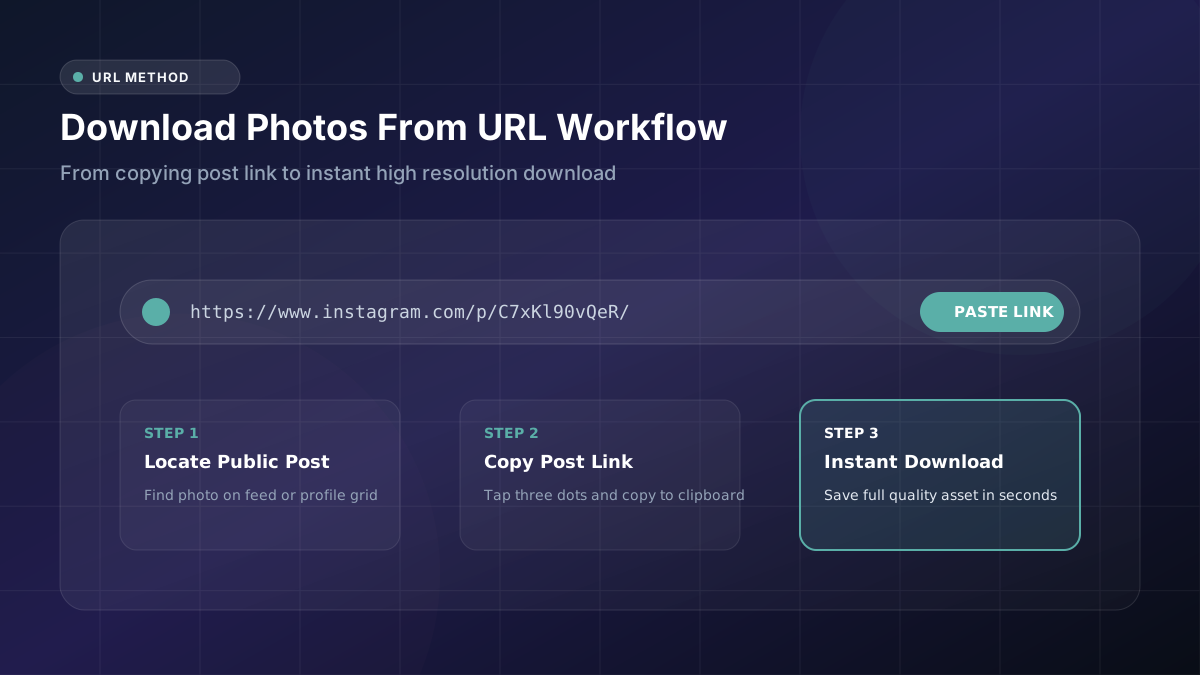
Copying and pasting sounds almost too simple to go wrong, yet plenty of people still hit unexpected snags trying to turn a copied link into an actual saved photo. Walking through the complete process from start to finish clears up exactly where things tend to break down and how to avoid each pitfall.
Where to Find an Instagram Photo URL
Every single public post on Instagram carries its own distinct web address, whether you’re viewing it through the mobile app or a desktop browser. This Instagram photo URL acts as the unique key that any downloader tool needs to locate and retrieve the correct image from Instagram’s servers.
You’ll encounter these URLs everywhere across the platform. Scrolling through a profile grid, browsing hashtag results, or clicking through Explore page recommendations all eventually lead you to an individual post with its own shareable link. Once you land on the specific post containing the photo you want, you’ve already completed the hardest part of the entire process, everything from here moves quickly.
How to Copy an Instagram Post Link
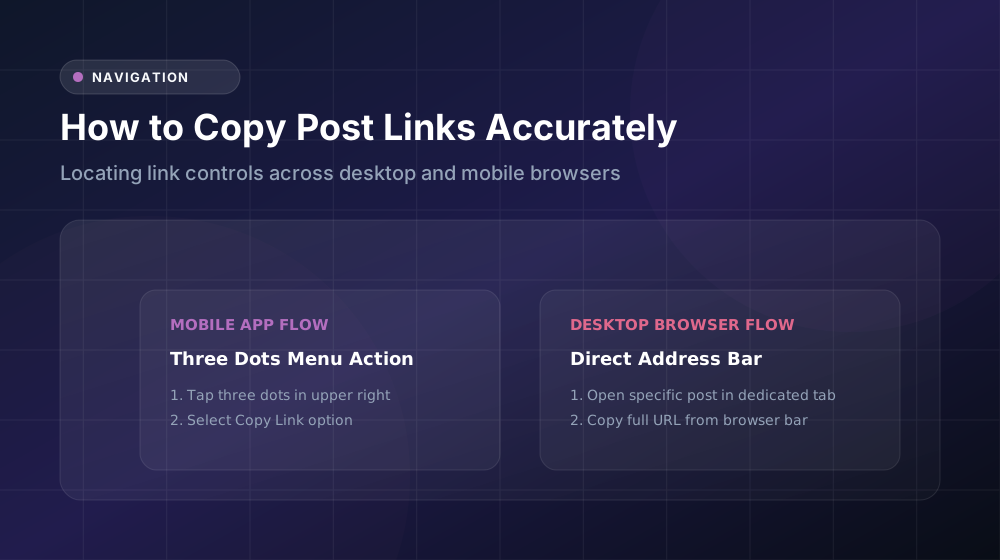
Locating the copy function takes just a couple of taps. On mobile, find the three-dot icon positioned above the post, tap it, then select “Copy Link” from the menu that slides up. Desktop users can achieve the identical result by right-clicking anywhere on the post and choosing the equivalent option from their browser’s context menu.
This single action instantly places the Instagram post link onto your device’s clipboard, ready for pasting wherever you need it next. No app switching, no extra permissions, and no complicated menus stand between you and a successfully copied link. It’s genuinely one of the simplest steps in the entire downloading process, though it’s also where small mistakes, like an incomplete copy, most commonly happen.
How to Paste the URL Into a Downloader
Take a moment to double-check that the pasted image link actually matches the post you intended to download. It’s surprisingly easy to accidentally copy the wrong post, especially when scrolling quickly through a feed full of similar-looking content. A stray character, extra space, or incomplete copy will typically stop the downloader tool from processing your request correctly, so this quick verification step saves you from an unnecessary error message later.
How an Instagram Photo Downloader Processes the Link
The Instagram link downloader then generates a visual preview directly within the tool’s interface, confirming it successfully located the correct image before you commit to actually downloading anything onto your device. This preview step matters more than it might initially seem, since it gives you one last opportunity to confirm you’re about to save the right photo before using your data and storage space.
How to Select the Image Quality
Before clicking that final download button, scan the page carefully for a quality dropdown menu or toggle switch. Many downloader tools offer both standard and high-resolution options displayed conveniently side by side, making comparison straightforward.
Making a thoughtful choice at this stage genuinely affects your end result in a meaningful way. A URL photo downloader offering flexible quality settings gives you significantly more control over the final outcome compared to bare-bones alternatives that only offer one fixed, often compressed, option. If you’re unsure which setting to pick, defaulting to the highest available quality rarely disappoints, since you can always compress a larger file later if needed, but you can never recover detail from a file that was compressed from the start.
How to Download the Photo
With your quality setting confirmed, click the download button and watch as the file transfers directly to your device’s designated save location. On a stable connection, this process typically completes within just a few seconds, even for larger, higher-resolution files.
Some browsers pause here to ask you where exactly you’d like to save the file, giving you a chance to choose a specific folder. Others handle this automatically, dropping the completed photo download straight into your default Downloads folder without requiring any additional input from you. Either way, keeping track of where your files land makes locating them afterward considerably easier.
How to Check Whether the URL Is Correct
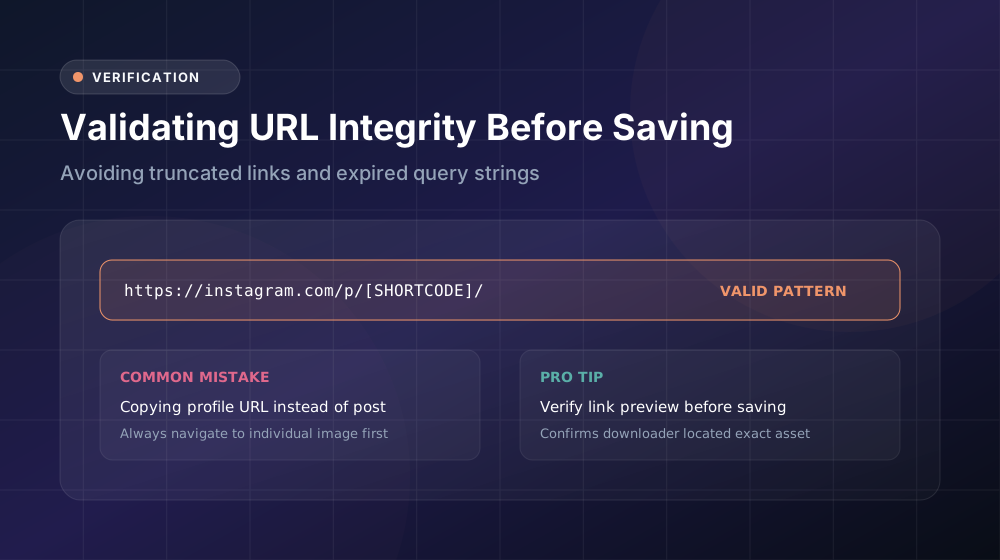
If something seems off before you even reach the downloader, testing the link separately clears up confusion quickly. A properly working URL should load the corresponding post immediately when pasted directly into your browser’s address bar and confirmed.
If nothing appears, or you land on an error page instead, something has gone wrong with the copied text itself. Common culprits include missing characters cut off during the copy process or accidentally grabbing a profile link rather than the specific Instagram post link you actually needed. Always run this quick test on suspicious-looking URLs before assuming the downloader tool itself is broken.
What Happens With an Invalid Instagram Link?
When a downloader encounters a broken or incorrect link, it typically responds with a clear error message rather than failing silently. This usually signals one of a few common scenarios: the original post got deleted, the account switched to private, or the URL simply got copied incorrectly in the first place.
Your best move is trying the copy process again from scratch, directly from the live post rather than from a saved note or forwarded message. If the error persists even after a fresh copy attempt, there’s a good chance the account has changed its privacy settings since you last viewed that particular public Instagram post, which would explain why the downloader can no longer access it.
How to Open the Downloaded Image
Once your download finishes, navigate to your device’s Downloads or Photos folder to locate the saved file. Most image formats open automatically through your device’s default photo viewer with a simple double-click or tap.
If the file refuses to open, or displays as corrupted or blank, there’s a strong chance the download didn’t complete fully, perhaps due to a dropped connection partway through. Simply trying the entire process again usually resolves this, and confirming you see a complete, full photo download progress indicator beforehand helps you catch incomplete transfers before they become a frustrating mystery later.
Conclusion
Downloading through a copied URL remains one of the most dependable, widely available methods for saving Instagram content today. Copy the link carefully, paste it accurately, select your preferred quality, and save. Master this straightforward five-step rhythm, and you’ll rarely run into serious trouble with Instagram image download tasks again, no matter which specific tool you decide to use.