How to Download Multiple Instagram Carousel Photos
Learn how to identify swipeable carousel posts and download every individual slide or complete set in full quality.
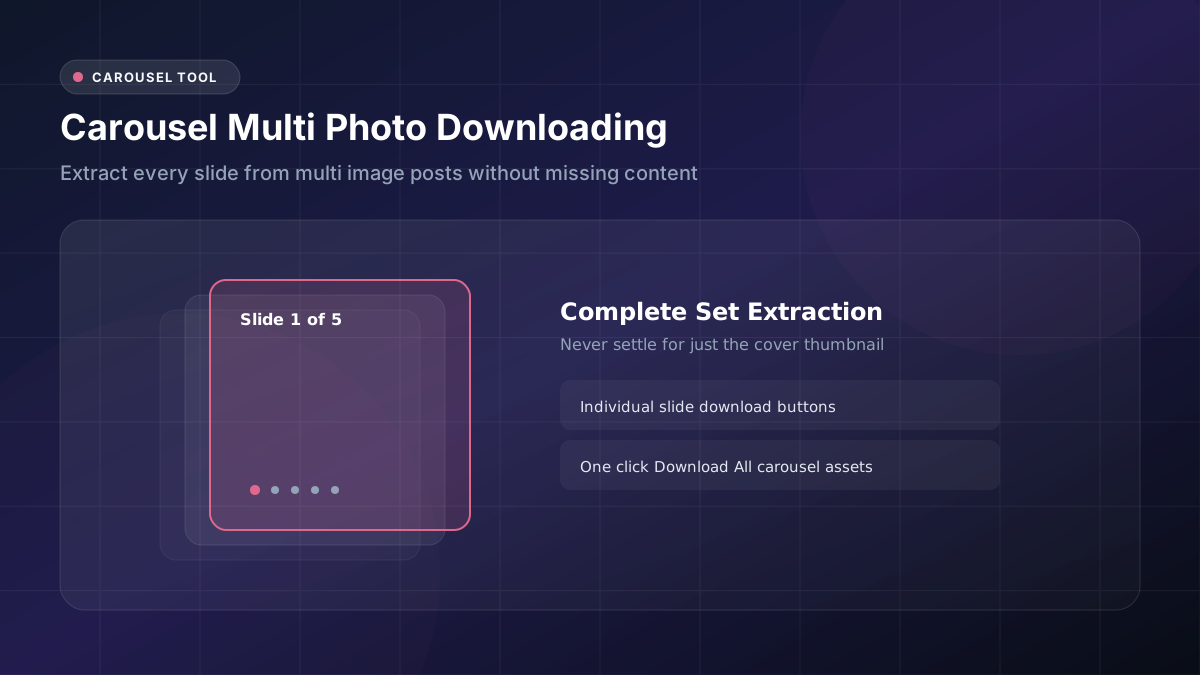
Carousel posts pack several distinct images neatly into a single swipeable post format. Accidentally saving just one photo when you actually wanted the entire set ranks among the most common, yet easily avoidable, mistakes people make.
What Is an Instagram Carousel Post?
A carousel post allows creators to share up to ten separate photos or videos bundled together within one single unified post. Viewers simply swipe left across the image to browse smoothly through each additional piece of content included.
This particular format works exceptionally well for photo series, step-by-step tutorials, or compelling before-and-after comparisons that benefit from multiple images working together. Learning to properly recognize a carousel represents the essential first step toward successfully downloading every single included Instagram carousel photo rather than settling for just the visible cover image.
How Carousel Posts Store Multiple Images
Behind the scenes, each individual image contained within a carousel actually carries its own distinct URL, even though all of them appear visually bundled together seamlessly within the standard Instagram app interface that users see.
This underlying technical structure means that any genuinely capable Instagram carousel downloader tool needs to properly detect and process each embedded image completely separately, rather than mistakenly treating the entire multi-image post as though it were just one single file to retrieve.
How to Identify a Multi-Photo Post
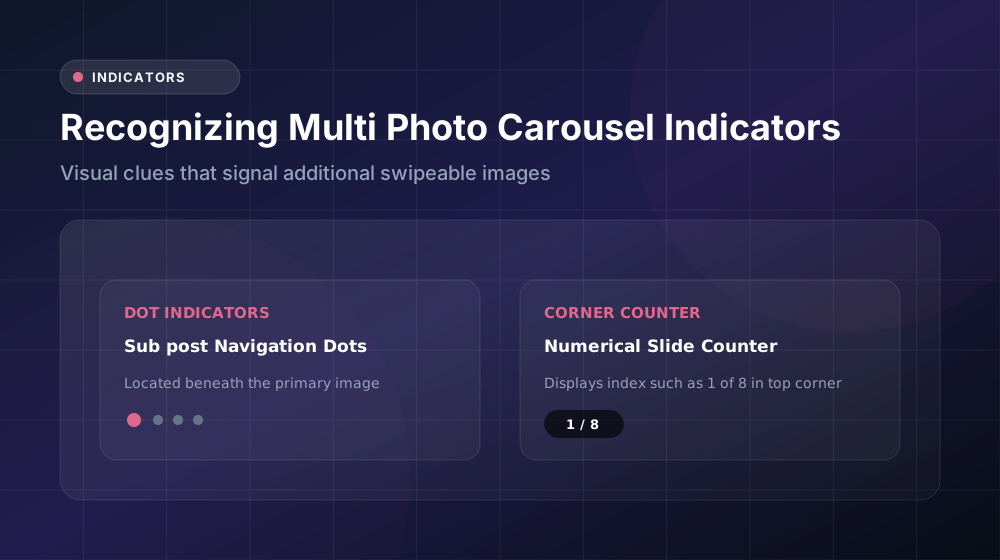
Watch carefully for small dot indicators positioned beneath the main displayed image, since these visually confirm the presence of additional swipeable content beyond what’s immediately visible. A small “1/5” style numerical counter sometimes appears as well, clearly confirming exactly how many total photos exist within that particular post.
Standard single-image posts never display these particular indicators at all. Spotting this small but important visual detail early on saves you from mistakenly assuming you’ve successfully downloaded the complete set, when you’ve actually only captured one photo out of a considerably larger carousel collection.
How to Download Individual Carousel Photos
If you only need one or two specific images rather than the entire set, swipe carefully to the exact photo you want first, then copy the post’s main link exactly as you normally would for any standard post. Certain more advanced downloader tools even let you specifically select which particular slide number you’d like to grab individually.
This more targeted, selective approach works particularly well whenever you don’t actually need every single image from the multiple Instagram photos included throughout the full carousel, saving both your time and your device’s available storage space in the process.
How to Download All Images From a Carousel
Paste the complete post URL into a carousel post downloader specifically designed and built to properly detect multi-image posts automatically. These specialized tools typically display every single photo contained within the post as individually separate, clickable download options for your convenience.
Click the download button on each individual image one at a time, or alternatively use a convenient “download all” button if your particular chosen tool happens to offer streamlined batch processing capabilities built directly into its interface.
How to Save Carousel Photos on Mobile
Follow your usual, familiar mobile downloading routine here, but go ahead and expect multiple separate save confirmation prompts to appear instead of encountering just a single one, as you might with a standard post. Each individual image typically requires its own distinct confirmation tap before actually saving successfully.
Exercising a bit of patience genuinely pays off throughout this particular process. Properly saving every single one of the carousel images included ensures your photo gallery ultimately ends up containing the truly complete set, rather than settling for an incomplete, partial collection that’s missing several images.
How to Save Carousel Photos on Desktop
Desktop users generally benefit from noticeably larger image previews here, making it considerably easier to carefully confirm each individual photo before actually committing to the download. Right-click and save each one manually, or alternatively use your downloader’s built-in batch feature if one happens to be available.
Taking the time to organize all these images into a single, clearly labeled dedicated folder immediately afterward helps tremendously with long-term navigation. Scattered, disorganized Instagram post photos become genuinely confusing remarkably fast without some kind of proper, thoughtful folder structure in place from the start.
How to Organize Multiple Downloaded Images
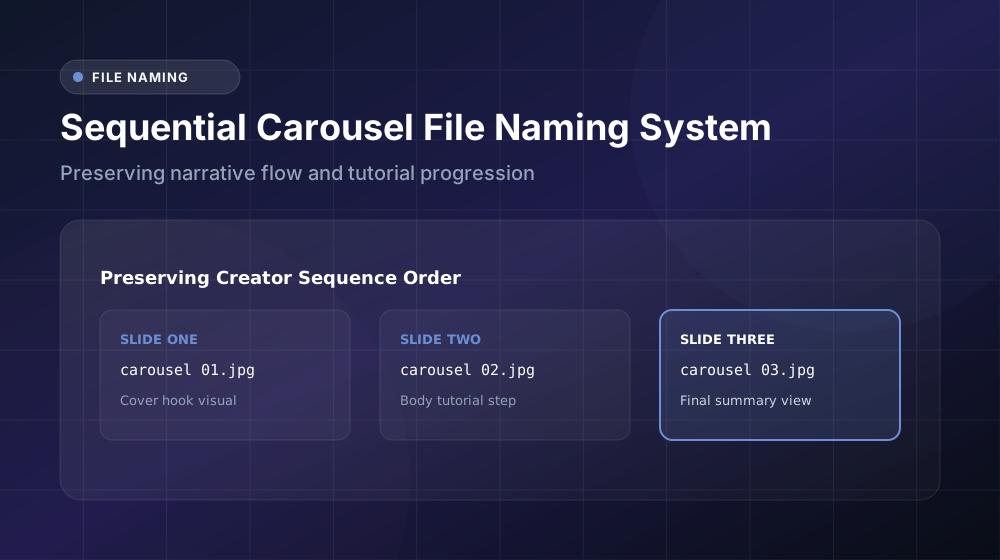
Number each individual file sequentially as you progressively save them, carefully matching their original order as they appeared throughout the carousel itself. This simple approach thoughtfully preserves whatever story or intentional sequence the original creator meant to convey through their specific arrangement.
A straightforward naming convention along the lines of “post-name-1,” followed by “post-name-2,” and so forth, works remarkably well for this purpose. Building this small habit into your routine keeps your overall image saving tool results genuinely useful and easily searchable over the long term, rather than becoming an unlabeled jumble.
Why Some Carousel Images May Not Download
Occasionally, individual video slides embedded within an otherwise photo-focused carousel simply won’t process correctly through downloader tools specifically designed for photos only. These particular tools sometimes silently skip over non-image content automatically, without providing any clear warning message beforehand.
Mixed-media carousels containing both photos and videos together genuinely require downloader tools specifically built and designed to properly handle both content formats simultaneously. Always check your chosen tool’s stated description carefully before simply assuming that every single photo URL contained within a particular post will necessarily work as expected.
Conclusion
Carousel posts genuinely reward paying a little bit of extra attention throughout the entire downloading process. Carefully identify the telltale multi-photo indicator, use a tool specifically built and designed for proper batch image download, and methodically save each individual slide one at a time. Get this process right consistently, and you’ll successfully capture the complete visual story in full, every single time you encounter a carousel post.