How to Save Instagram Photos Without Losing Image Quality
Understand compression mechanics avoid generational loss and preserve maximum sharpness when saving social media pictures.
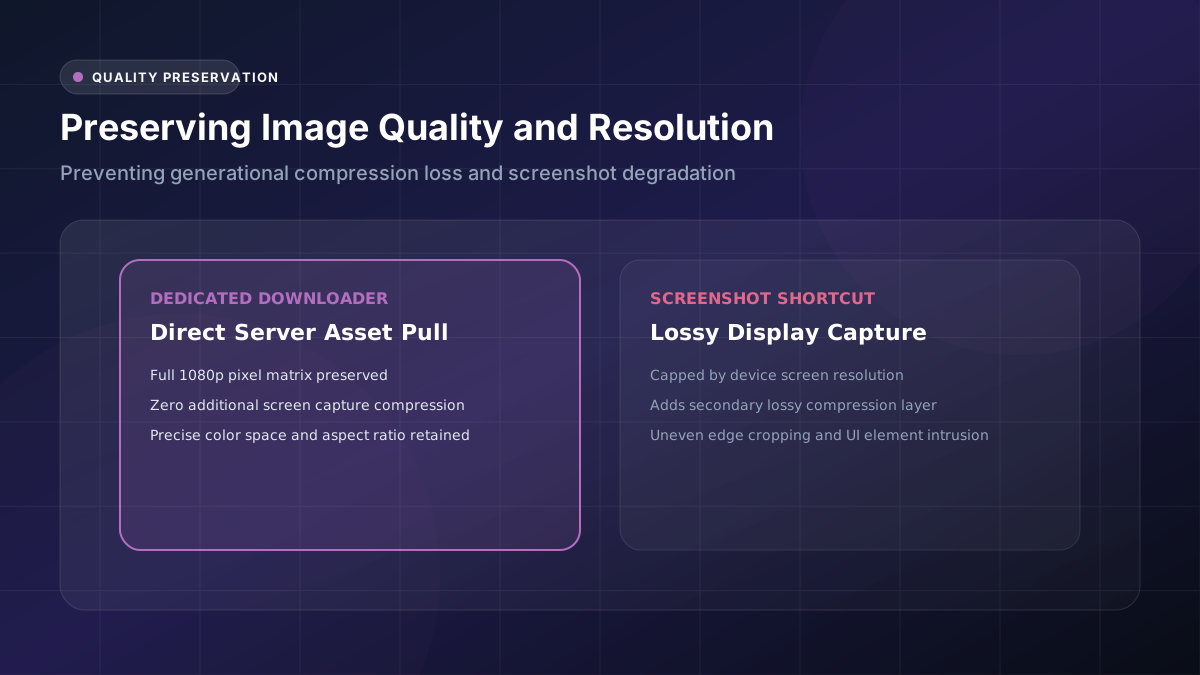
Quality loss can feel like a genuine mystery right up until you actually understand what’s happening behind the scenes during the entire process. Once that underlying mechanism finally clicks into place, protecting it becomes a surprisingly manageable, straightforward task.
What Causes Quality Loss in Instagram Images?
Compression stands out as the primary culprit responsible for most quality loss you’ll encounter. Every single time an image gets processed, resized, or re-saved along the way, it potentially loses at least some portion of its original image quality in the process.
Does Instagram Compress Uploaded Photos?
Yes, consistently and entirely automatically, without any exceptions. Instagram applies its own standardized Instagram compression process to virtually every single image the very moment it gets uploaded, carefully balancing visual quality against loading speed alongside overall server storage costs.
This automatic compression happens regardless of how genuinely high-quality your original camera file might have actually been beforehand. The platform’s underlying algorithm treats every single upload essentially the same way throughout this automatic, standardized process, without making meaningful exceptions based on the source file’s original quality level.
How Downloading Can Affect Resolution
Poorly designed or carelessly built downloader tools sometimes unfortunately add an entirely second layer of compression stacked directly on top of whatever compression Instagram had already applied during the original upload. This particular photo resolution decline compounds and stacks up remarkably quickly when this happens.
How to Choose the Highest Available Quality
Always make a habit of looking carefully for a quality selector before confirming any download request you’re about to make. Options clearly labeled “HD,” “Original,” or “High Resolution” should consistently become your automatic default choice every single time you’re downloading.
Skipping past this particular step represents, by far, the single most common reason people end up disappointed with unexpectedly low resolution results they genuinely weren’t anticipating or hoping for when they initially decided to save a particular photo.
How to Check Image Dimensions
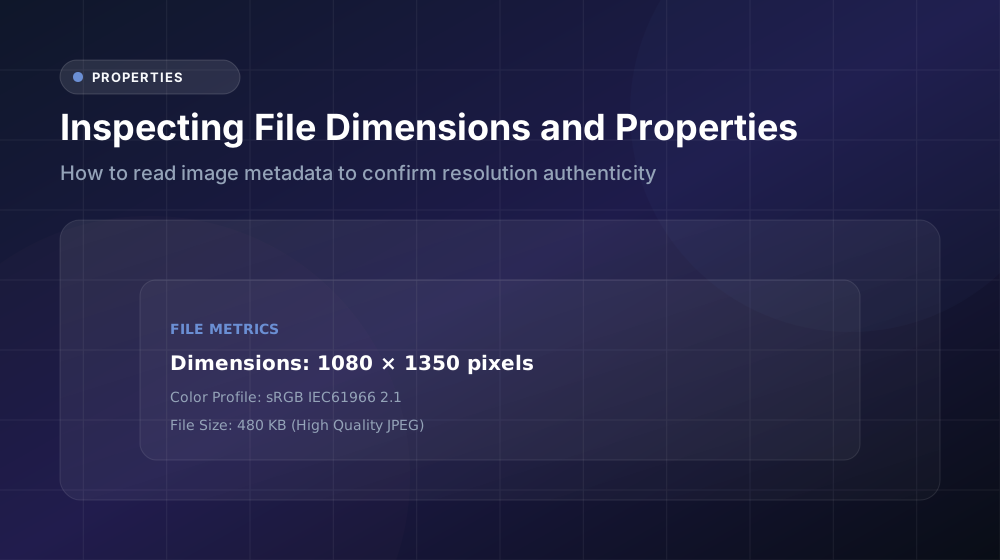
Right-click on any saved photo file and view its detailed properties to see the exact pixel measurements recorded for that particular image. Wider overall dimensions generally indicate a genuinely higher-quality, noticeably less compressed photo dimensions result compared to smaller alternatives.
Compare this specific number carefully against what you’d reasonably expect from the original post whenever that’s actually possible to verify. A significant, noticeable drop in dimensions strongly suggests your particular downloader tool applied unnecessary additional compression somewhere during the overall saving process.
How to Compare the Original and Downloaded Image
Zoom carefully into both versions side by side at precisely the same magnification level for a fair, accurate comparison. Fine details like small text, subtle textures, or intricate small patterns reveal underlying compression damage considerably faster and more clearly than almost anything else you could examine.
This particular image comparison habit genuinely helps you properly evaluate whether a specific downloader tool actually delivers on its stated high-quality promises, or whether it’s quietly falling short of what it claims to offer users.
Why JPG Compression Matters
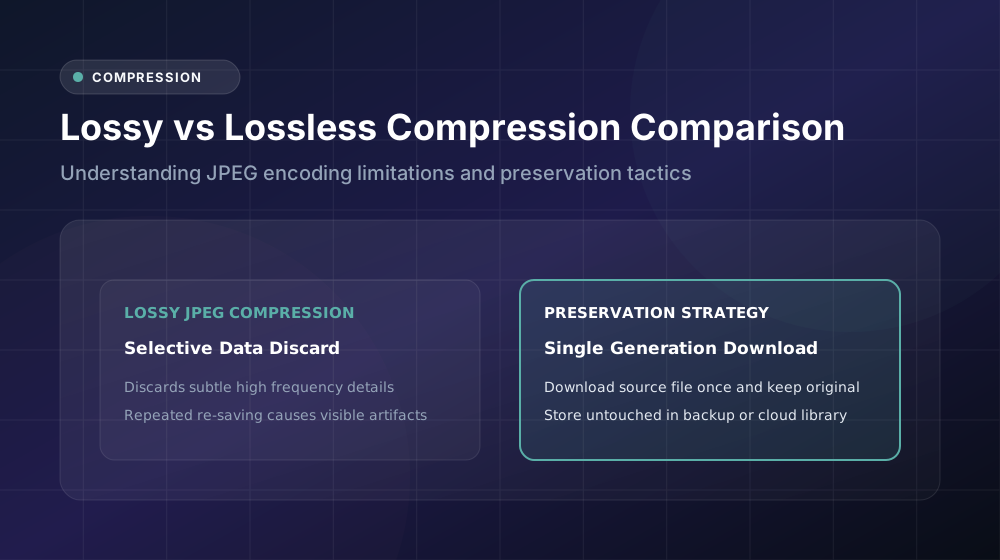
JPG format, easily the most common format used for Instagram photos across the platform, relies on inherently lossy compression by fundamental design. Some meaningful visual detail simply disappears permanently and irreversibly, even when you’ve carefully selected the absolute best-available quality settings offered.
Genuinely understanding how JPG compression actually works helps you set realistic, grounded expectations going forward. Perfect, completely lossless quality simply isn’t achievable through this particular format no matter what you try, but noticeably meaningful improvement absolutely remains within reach through smart, informed choices.
How to Avoid Unnecessary Recompression
Download images directly through a proper tool rather than resorting to taking screenshots or forwarding files through messaging apps, since both of these alternative methods apply their own additional compression layers automatically, without ever asking your permission first.
Consistently sticking with a genuinely dedicated image downloader that carefully preserves the underlying source file remains your single best defense against avoidable, unnecessary quality degradation throughout the entire saving process.
How to Store High-Quality Instagram Photos
Cloud storage services frequently compress uploaded images automatically as well, often without clearly informing users beforehand. Double-check your specific settings carefully to ensure your genuinely high quality original files actually stay completely untouched throughout the storage and backup process.
Conclusion
Successfully protecting image quality genuinely starts with understanding precisely where meaningful loss actually happens throughout the process, then consistently making smart, informed choices at each individual step along the way. Choose HD settings deliberately, avoid taking screenshots as shortcuts, and store your files carefully afterward. Follow this thoughtful overall approach consistently, and your saved photos will continue holding up beautifully over time, retaining their original sharpness and detail.