Why Is My Instagram Photo Download Not Working?
Troubleshoot failed Instagram downloads with practical fixes for broken links blank previews ad blocker conflicts and corrupted files.
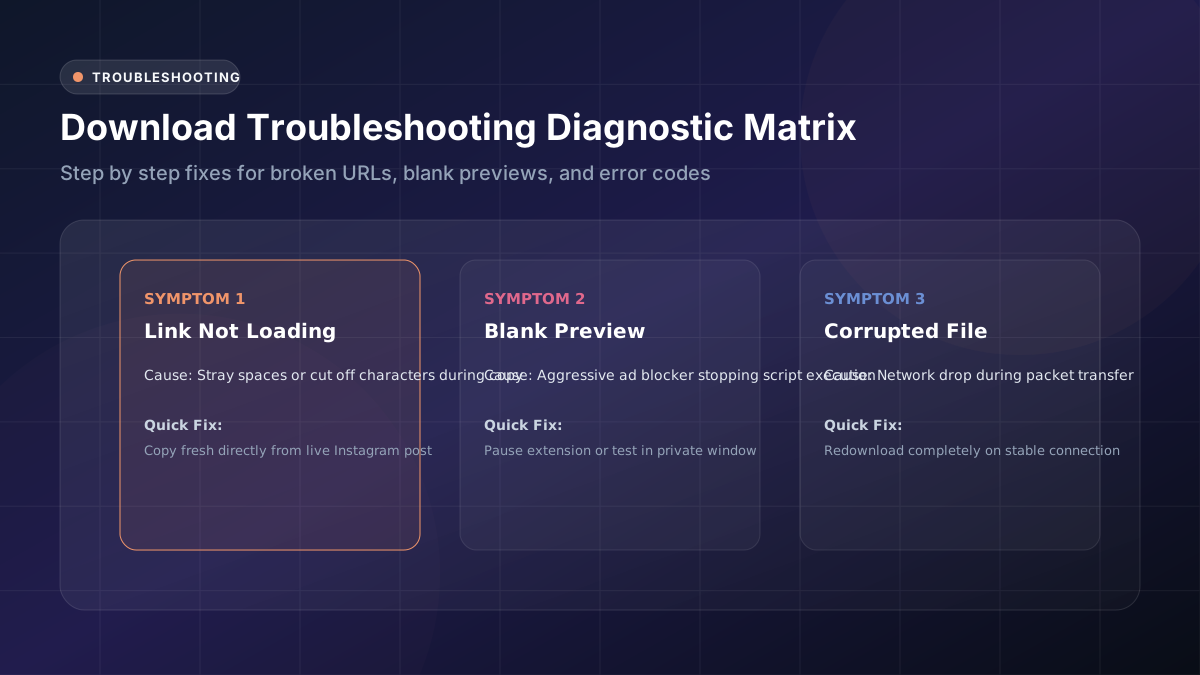
Few everyday tech frustrations feel quite as maddening as a download that simply refuses to cooperate no matter what you try. The genuinely good news is that most reported issues ultimately trace back to just a handful of common, entirely fixable underlying causes.
Why an Instagram Photo URL May Not Work
Copied links sometimes unexpectedly include extra stray characters, or occasionally get cut off partway through the copying process itself. This relatively small Instagram URL error prevents downloader tools from successfully locating and correctly identifying the intended post you’re trying to save.
Try copying the link completely fresh directly from the original post, rather than attempting to reuse an older link you might have saved somewhere previously. Freshly copied URLs successfully resolve the overwhelming majority of unexpected, otherwise mysterious download failures almost immediately, without requiring any further troubleshooting steps.
What to Do With an Invalid Link
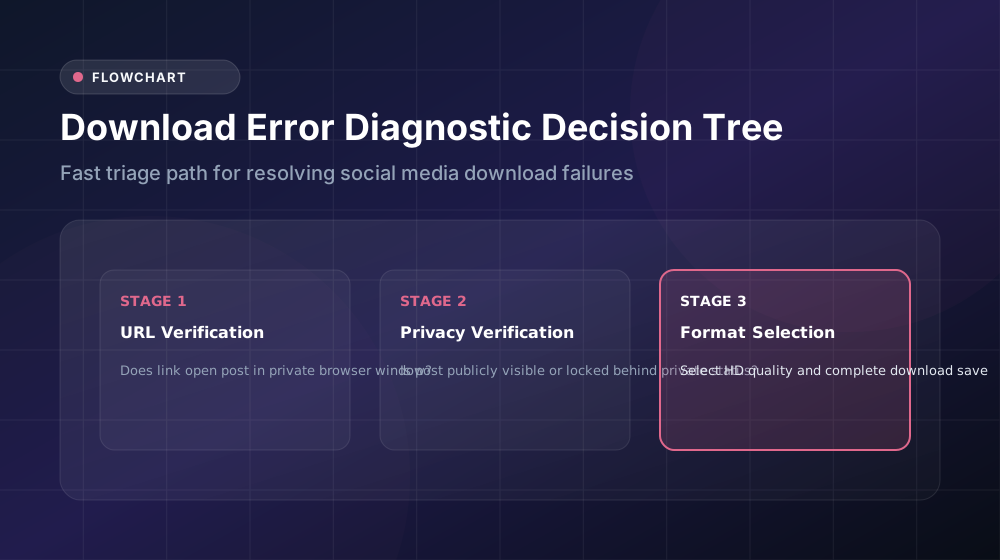
Paste the suspicious URL directly into your browser’s address bar first, simply to confirm whether it actually loads correctly on its own. If the corresponding post fails to appear at all, then you’ve genuinely identified an invalid Instagram link as your actual underlying problem here.
Make sure to recopy the link directly from the original source post itself, rather than pulling it from a previously saved note or forwarded message, where subtle formatting changes sometimes quietly break the link’s necessary technical structure without you even realizing it happened.
Why a Downloader May Not Recognize a Post
Certain downloader tools occasionally struggle when encountering newer Instagram post formats or recently rolled-out platform updates that haven’t been fully accounted for yet. This creates a temporary downloader troubleshooting situation that typically persists only until the particular tool’s developers manage to catch up with Instagram’s latest changes.
Switching over to an entirely alternative downloader website often resolves this type of issue almost instantly. Not every single tool available online updates at precisely the same pace following Instagram’s genuinely frequent, ongoing platform changes and technical adjustments.
How Browser Problems Affect Downloads
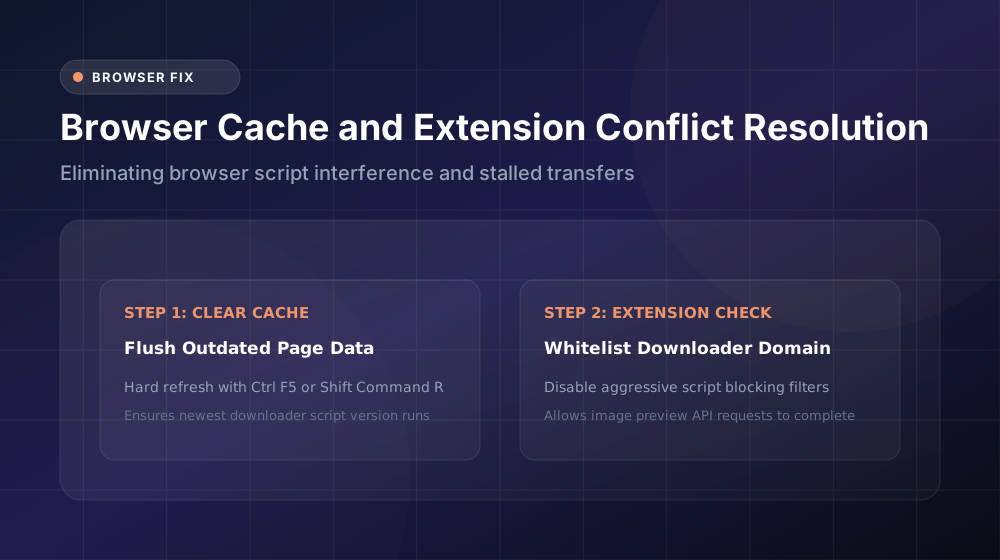
Outdated browser software, along with overly aggressive ad-blocking extensions, frequently interferes unexpectedly with the scripts that downloader tools rely on to function correctly. This particular browser problem typically manifests as stalled progress indicators or entirely blank preview screens that never actually load.
Try switching over to a completely different browser altogether, or temporarily disable any active extensions you currently have running. Clearing out your browser’s cached data also resolves plenty of stubborn, otherwise genuinely hard-to-diagnose download failures surprisingly often, even when nothing else seems to work.
What Happens When a Post Is Deleted?
Content that’s already been deleted simply cannot be retrieved through any downloader tool whatsoever, regardless of how that particular tool happens to be designed, marketed, or advertised to potential users.
If you managed to copy the relevant link before deletion occurred, but only attempt the actual download afterward, expect to encounter a clear deleted Instagram post error message instead of successfully receiving your intended image file.
Why a Downloaded File May Not Open
Incomplete downloads frequently produce corrupted files that stubbornly refuse to open properly no matter which application you try using. This particular problem typically happens whenever your internet connection unexpectedly drops partway through the ongoing file transfer.
Simply redownloading the file entirely from scratch, rather than attempting to repair the existing broken file, generally works far better here. A completely fresh attempt resolves the vast majority of corrupted image situations without requiring any additional, more complicated troubleshooting steps beyond that.
How to Deal With Blurry Downloaded Images
Double-check carefully whether you actually selected the HD or original quality option before initiating the download in the first place. Default settings built into many downloader tools unfortunately default automatically to compressed, noticeably lower-resolution versions unless you manually change them.
If the blurry image problem still persists even after deliberately choosing HD quality, there’s a reasonable chance the original poster themselves uploaded a naturally lower-quality file to begin with, meaning no downloader tool can meaningfully improve upon that inherent starting limitation.
What to Check Before Trying Again
| Issue Encountered | Quick, Practical Fix |
|---|---|
| Link error | Recopy the URL fresh |
| Blank preview | Switch to a different browser |
| Blurry result | Select the HD option |
| File won’t open | Redownload the file completely |
Working systematically through this straightforward checklist resolves the overwhelming majority of reported download failure complaints within just a few short minutes of focused troubleshooting effort.
When to Try Another Download Method
If one particular tool keeps consistently failing despite your best troubleshooting efforts, don’t waste excessive time forcing the issue further. Switching over to a genuinely different Instagram photo downloader entirely often works noticeably better than continuing repeated troubleshooting attempts with the original problematic tool.
Consider bookmarking two or three reliably functioning options well in advance, before you actually need them urgently. Having reasonable backup choices readily available saves considerable time and frustration whenever your usual primary tool unexpectedly encounters unforeseen problems down the road.
Conclusion
Most reported Instagram photo download hiccups ultimately come down to simple link errors, browser-related conflicts, or content that’s already been deleted by its original creator. Work systematically through these basic troubleshooting steps first, then confidently switch tools if the problem genuinely persists afterward. With this practical troubleshooting checklist readily available, you’ll rarely find yourself stuck for very long when problems inevitably arise.